Client Onboarding Questionnaire: 40 Questions
40 questions to send a client after they sign, with the answer type for each, extras by service, and how to get account access without a password.
By Opusite Team · Updated

A client onboarding questionnaire is the form you send a new client right after they sign. It collects what only the client can tell you before the kickoff call: who decides, what a good result looks like, their brand files, the dates you must plan around and access to their accounts. Send it the day the contract is signed, ask for answers before the kickoff call, and keep it to questions you will use.
Below are 40 questions: 28 for every client, and 12 more for six common services (websites, SEO, social media, paid ads, branding and virtual assistant work). Each question comes with the answer type to use in your form and the reason to ask it. Copy them into any form tool.
It also covers two jobs that come after the questions: getting into a client's Google and Meta accounts without anyone sharing a password, with the steps from each platform's own help center, and what to do with the answers once they arrive.
We make Opusite, a workspace for small teams that includes a form builder and a CRM. You do not need it to use this list. Where it fits is near the end, and we say who it is not for.
The short answer
- What it is: a form for clients who have already signed, not a sales form.
- When to send it: the day the contract is signed, with a reply-by date before the kickoff call.
- What to ask: contacts and sign-off, the business, goals and reporting, brand and files, account access, and how you will work together.
- How long: 28 core questions, plus 2 for each service the client bought. Hide the rest with show-and-hide rules.
- What never to ask: passwords. Ask the client to invite you instead.
- What to do next: put the answers where your whole team can see them, turn them into tasks, and build the kickoff agenda from the gaps.
What belongs in the questionnaire, and what does not
The questionnaire sits between two conversations you already have: the sales call before the contract, and the kickoff call after it. Each question goes in the one place it fits.
| Ask it | What goes there | Examples |
|---|---|---|
| Before the contract (sales call or intake form) | What decides whether you work together and for how much | Budget, scope, price, deadline |
| In the onboarding questionnaire | Facts only the client knows, that you need before you start | Contacts, files, access, goals, dates |
| On the kickoff call | Anything that needs a conversation | Gaps in the answers, trade-offs, first priorities |
If a question was settled in the contract, leave it out. Asking for the budget again after a client has signed can make them wonder whether you read the contract.
When to send it
- The contract is signed, and the deposit is paid if you take one.
- Send the questionnaire the same day, with a reply-by date that leaves you time to read the answers before the kickoff call.
- Read the answers and list what is missing or needs a decision.
- Hold the kickoff call with that list as the agenda.
- Look at the answers again after the first month, when you know which ones you relied on.

The 40 questions
The answer type after each question is the field to use in your form. "Short text" is one line, "long text" is a paragraph box, and "file upload" lets the client attach files instead of emailing them.
Contacts and sign-off (every client)
- Who is your day-to-day contact, and how do they prefer to be reached? Short text, plus a dropdown: email, phone, text or chat. Why: so the first message goes to the right person on the right channel.
- Who signs off on our work, if that is someone else? Short text. Why: drafts approved by the wrong person can get redone.
- Who do we contact when your main contact is away? Short text. Why: holidays should not stop the project.
- Which days and hours can we expect replies, and in which time zone? Short text. Why: it sets honest turnaround times on both sides.
- Where should invoices go, and do they need a purchase order number? Email field, plus short text. Why: invoices sent to the wrong inbox can get paid late.
Your business (every client)
- In one or two sentences, what do you sell, and to whom? Long text. Why: it is the line every brief, page and post starts from.
- Which products or services matter most to you this year? Long text. Why: it tells you where to spend the first month.
- Who is your best customer, and what problem do they bring you? Long text. Why: it gives you the audience in the client's own words.
- Who are your main competitors, up to three, and what do they do better than you? Long text. Why: it shows what the client is measuring themselves against.
- Is there anything we must never say, claim or promise about your business? Long text. Why: regulated words, legal limits and touchy subjects surface before anything is published.
Goals and reporting (every client)
- What would a good result look like six months from now? Long text. Why: it turns "more leads" into something you can check.
- Which numbers do you already track? Checkboxes: website visits, form leads, calls, bookings, sales, none yet. Why: you learn what exists before promising a report.
- What have you tried before, and what happened? Long text. Why: you avoid repeating what already failed.
- Are there dates we must plan around, such as launches, events or busy seasons? Date fields, plus long text. Why: the plan fits the client's calendar from day one.
- How often do you want a report, and in what form? Dropdown: weekly, every two weeks or monthly; then email, PDF, a live dashboard or a call. Why: it agrees on reporting once, in writing.
Brand and files (every client)
- Please upload your logo files. File upload. Why: it saves rounds of asking for a version with a transparent background.
- Do you have brand guidelines, such as colours, fonts and tone of voice? Please upload them. File upload. Why: the work matches from the first draft.
- Which three words should describe how your brand sounds? Short text. Why: it gives a quick check for every piece of writing.
- Share examples of work you like and work you do not, with a line on why. Long text. Why: links say more about taste than adjectives.
- Where do your existing photos, videos and documents live? Short text for a shared folder link. Why: you start from what exists instead of making it again.
Access, without passwords (every client)
- Which of these accounts do you have? Checkboxes: website admin, domain registrar, Google Analytics, Google Search Console, Google Business Profile, Facebook and Instagram, ad accounts, email marketing tool. Why: it builds the access list before the first task needs it.
- Who on your side is the admin of each account? Short text. Why: only an admin can invite you, so this is who you send the steps to.
- Will you invite us with each platform's own user or partner settings, instead of sending passwords? Checkbox to confirm. Why: it sets the rule before anyone emails a password. The steps are in the next section.
- Does anyone else still have access, such as a previous agency or freelancer? Long text. Why: old access is a security gap, and it explains changes you did not make.
Working together (every client)
- How do you want to review drafts: comments in a shared tool, a call or email? Dropdown. Why: reviews arrive in one place.
- How quickly can you usually approve a draft? Dropdown: within a day, within three days, within a week. Why: the timeline uses the client's real pace.
- What did a past agency or supplier do that you do not want repeated? Long text. Why: it tells you early what upsets this client.
- Is there anything else we should know before the kickoff call? Long text. Why: it catches what the other 27 missed.
Extra questions by service
Show each pair only to clients who bought that service. With show-and-hide rules, a client who bought one service answers 30 questions, not 40.
Websites
- What must visitors be able to do on the new site, such as book, buy, call or send a form? Checkboxes, plus long text. Why: the site is built around those actions.
- Who hosts the current site, and who controls the domain? Short text. Why: launch day depends on the person with the domain login.
SEO
- Which services and which towns or regions matter most for search? Long text. Why: it sets which pages and searches to work on first.
- Has anyone done SEO work or bought links for this site before? Radio: yes, no or not sure, plus long text. Why: old work can explain today's rankings, good or bad.
Social media
- Which platforms are you on now, and which do you want to add or drop? Checkboxes. Why: it sets the scope platform by platform.
- Who answers comments and direct messages, and how fast should they be answered? Short text, plus a dropdown. Why: it makes clear whether answering people is part of your job.
Paid ads
- How much do you plan to spend on ads each month, and who pays the ad platform directly? Number, plus a dropdown. Why: ad spend and your fee are kept apart from day one.
- What counts as a conversion for you: a call, a form, a booking or a sale? Checkboxes. Why: the ads are optimised for the action the client values.
Branding and design
- What must stay from your current brand, and what is free to change? Long text. Why: it marks the limits before the first concept.
- Where will the brand appear first: website, signage, packaging, social or print? Checkboxes. Why: the first files are made in the formats the client needs first.
Virtual assistant work
- Which tasks can I do without asking, and which need your OK first? Long text. Why: it draws the line before the first judgment call.
- Which inbox, calendar and tools will I work in, and how much can I spend without approval? Long text, plus a number. Why: access and spending limits are agreed in writing.
How to get account access without anyone sharing a password
Never ask for passwords in the questionnaire. A password typed into a form sits in the form's answers and in any notification email that copies them, where anyone who opens them can use it. Google Analytics, Search Console, Business Profile and Meta Business Suite all let the client invite you on your own login instead.
Here are the steps, read from each platform's help center on November 5, 2026. Send the ones that match question 21 to the admin named in question 22.
Google Analytics. Users are added at the account or property level. The admin goes to Admin, then Access Management under Account or Property, clicks +, then Add users, enters your email address, picks your permissions and clicks Add. Google's help page says it can only add users whose email addresses are registered in Google accounts, and that adding or changing users needs the Administrator role.
Google Search Console. The property owner opens Settings, then Users and permissions, clicks Add user, enters the Google Account email of the person to add and chooses the permission level. Only a property owner can add users, an email group cannot be added, and a property can have up to 100 users who are not owners.
Google Business Profile. An owner opens the profile's settings, then People and access, selects Add, enters your email address, chooses Owner or Manager under Access and selects Invite. Google's own tip: "To access and manage Business Profiles without the need to share your password, each user needs their own Google Account." Managers can do most of what owners can, except add or remove users and remove the profile.
Facebook and Instagram (Meta Business Suite). Someone with full control of the client's business portfolio goes to Settings, then Partners under Users, clicks Add, chooses Give a partner access to your assets, enters your business portfolio ID and chooses which assets you get and whether that is full control or partial access. You will need your own business portfolio, and your ID is in its Settings.
For a website, domain or email tool not listed here, ask the admin to add you as a user with your own email address, and check the tool's help center for its own steps.
How to build the form so clients finish it
- Make only the essentials required. If you can start without an answer, leave it optional.
- Use the answer types above. A dropdown or checkbox takes seconds; a paragraph box takes thought, so save those for questions that need one.
- Group the questions into sections with the headings used here, so the client sees where they are.
- Use show-and-hide rules for the service questions, so nobody answers about ads they did not buy.
- Let clients upload files in the form rather than emailing them later.
- Send an automatic reply that thanks them, says what happens next and gives the kickoff date, with the access steps for the platforms they ticked.
- Send the answers where the work happens: to the client's record and to the person running the project, not only to a spreadsheet.
Questions to leave out
- Passwords. Use the invite steps above instead.
- Anything the contract settled. Budget, scope, price and deadline were agreed already. Confirm them on the kickoff call if you must.
- Numbers a client may not track, asked as if they should. Customer lifetime value, acquisition cost and profit margins are useful, but not every client has them to hand. Ask "Do you track this? If so, please share it," not "What is it?"
- Two questions in one. "What are your goals and your budget?" gets half an answer. Split it.
- Questions you will not use. Every question costs the client time. If nobody on your team will act on the answer, cut it.
What to do with the answers

- Put them where the whole team can see them, on the client's record, so nobody asks the client the same thing twice.
- Turn answers into tasks with owners. Logo files go to design, access requests go to whoever sets up the accounts, and dates go on the project calendar.
- Build the kickoff agenda from the gaps: the blanks, the "not sure" answers and anything that conflicts with the contract.
- Agree the reporting format from questions 12 and 15 before the first report is due.
- Read the answers again after the first month. Remove the questions nobody used from the next client's form, and add the one you wished you had asked.
Running the questionnaire in Opusite
We make Opusite.
Opusite is a workspace for small teams, typically 5 to 20 people, that win work and then deliver it: agencies, studios and other service businesses. It puts the form, the client record and the project in one place, which is the job this guide describes. It is sold to teams, from 3 seats, so if you work alone, a free form tool such as Google Forms will do this job for you.
What it does with a questionnaire:
- Forms has 10 answer types: text, email, textarea, select, number, phone, date, checkbox, radio and file upload. Each question on this page maps to one of them; a question with several boxes to tick takes one checkbox per option.
- Show-and-hide rules show a question only when another answer matches, so one form can carry all six service sections and show each client only theirs.
- Answers can go to the CRM: each submission can create a contact, so the new client is on record next to your deals and invoices.
- Each submission can become a task in Workbench, Opusite's project board, in the project and with the assignee you pick, so the questionnaire lands on the board of the person running onboarding.
- An automatic reply goes to the client after they submit, and notification emails tell your team. Share the form by link or QR code, or embed it on your site.
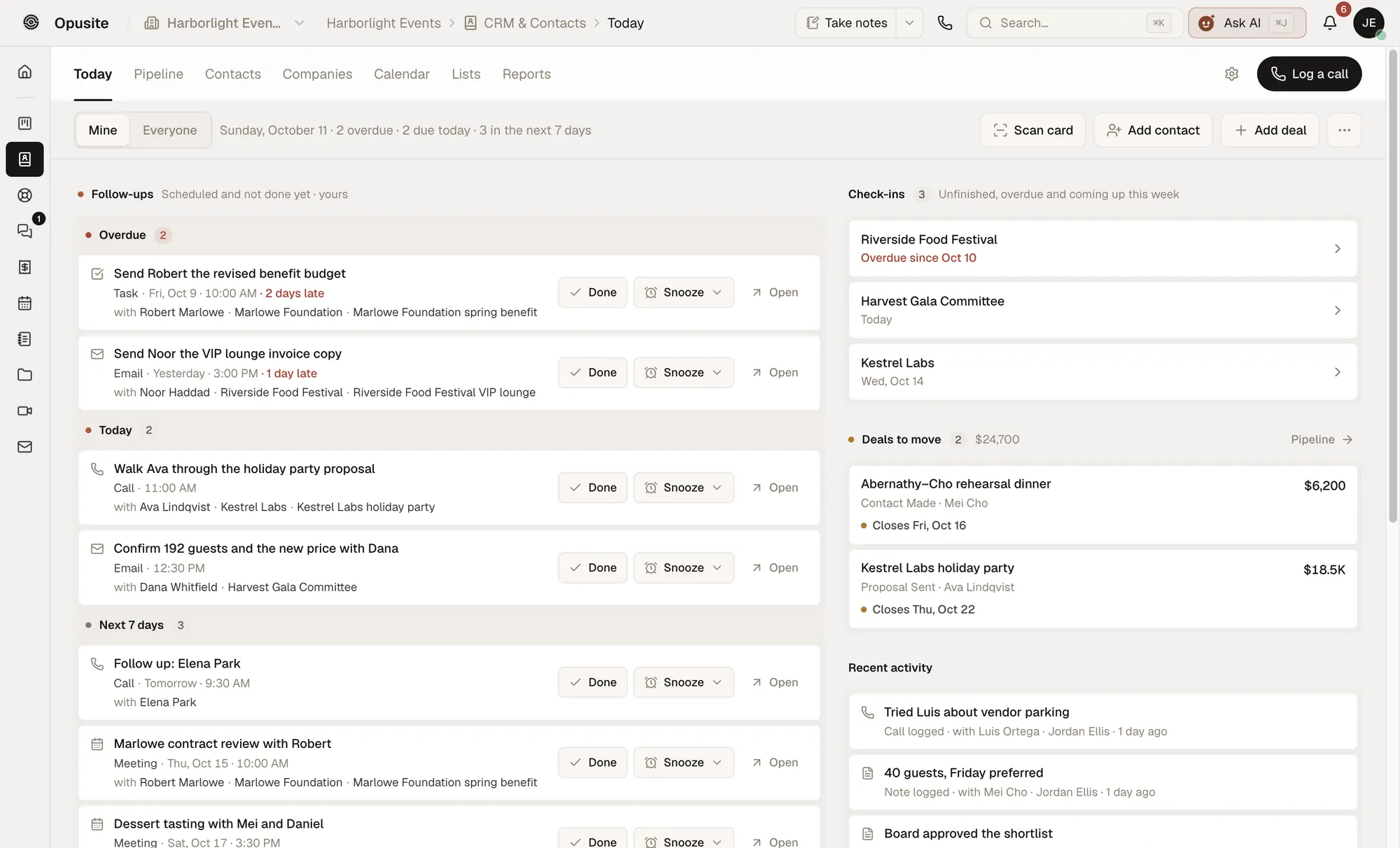
Price. Forms, the CRM and Workbench are on the Business plan, $150 a seat a month, sold in steps of 3, 6 or 9 seats, so the smallest team plan is $450 a month. Clients who only fill in your forms never sign in, so they are not seats.
Where it falls short. It costs far more than a form tool, so it only makes sense if you would also run your clients and projects in it. Its plan for one person, Personal at $35 a month, does not include Forms or the CRM. Opusite is invite-only, so the way in is a 30-minute demo call. See what each Opusite plan includes and costs.
How we wrote this
The questions come from the jobs an agency or studio has to do in its first weeks with a client. Each answer type is one that Opusite's form builder offers today. The access steps were read on each platform's help center on November 5, 2026; platforms change their menus, so follow the help page if a step looks different. Opusite's features and prices come from our features and pricing pages and the product itself on the same day. If something here is out of date, tell us at sales@opusite.com.
Sources
Read on November 5, 2026, from the United States.
- Google Analytics Help, "Add, edit, and delete Analytics users and user groups": https://support.google.com/analytics/answer/9305788
- Search Console Help, "Managing owners, users, and permissions": https://support.google.com/webmasters/answer/7687615
- Google Business Profile Help, "Manage your Business Profile owners & managers": https://support.google.com/business/answer/3403100
- Meta Business Help Center, "Give a Partner Access to Business Assets in Your Business Portfolio": https://www.facebook.com/business/help/1717412048538897
- Content Snare, "Client onboarding questionnaire: 20 questions to ask" (says Google Forms is free with a Google account): https://contentsnare.com/client-onboarding-questionnaire/
- Opusite pricing: /pricing
- Opusite features: /features
Questions people ask
- What is a client onboarding questionnaire?
- It is the form you send a new client after they sign, so you have what you need before the kickoff call: who decides, what a good result looks like, brand files, dates to plan around and access to their accounts. It is not a sales form. Budget, scope and price are settled before the contract, so the questionnaire does not ask them again.
- What questions should I ask a new client?
- Ask what only the client can tell you, in six groups: contacts and sign-off, the business, goals and reporting, brand and files, account access, and how you will work together. This guide lists 28 such questions for every client and 12 more for six services: websites, SEO, social media, paid ads, branding and virtual assistant work.
- How many questions should a client onboarding questionnaire have?
- Only as many as the client can answer and you will use. In this guide that is 28 questions for every client, plus 2 for each service the client bought. Use show-and-hide rules so a client who bought one service sees 30 questions, not 40.
- When should I send a client onboarding questionnaire?
- Send it the day the contract is signed, or the day the deposit arrives if you take one. Give a reply-by date that leaves you time to read the answers before the kickoff call, then build the call's agenda from the blanks and the answers that need a conversation.
- Should I ask clients for their passwords?
- No. A password typed into a form sits in the form's answers and in any notification email that copies them. Google Analytics, Google Search Console, Google Business Profile and Meta Business Suite all let the client invite you on your own login instead. Ask which accounts exist and who is the admin, then send the steps.
- What is the difference between a client intake form and an onboarding questionnaire?
- An intake form is filled in by a prospect before you agree to work together: what they need, their budget and their timeline. An onboarding questionnaire comes after they sign and collects what you need to start: contacts, files, access, goals and how they want to review work.
- What should a social media manager ask a new client?
- The 28 core questions, plus two: which platforms the client is on now and which to add or drop, and who answers comments and direct messages, and how fast. Brand voice, the words to avoid and the approval process are covered by the core questions.
- What should a virtual assistant ask a new client?
- Beyond contacts and access, ask which tasks you can do without asking and which need the client's OK, and which inbox, calendar and tools you will work in, with the amount you may spend without approval. Those two answers set the limits before the first task.
- Is there a free client onboarding questionnaire template?
- The 40 questions on this page are free to copy into any form tool. Each one names the answer type to use, such as short text, dropdown, checkboxes, date or file upload, so the form is quick to build. Google Forms is free with a Google account.